The Mixen app is a music player for musicians and audio engineers on the go. You want to listen to what you’re working on in different environments, right? Play it for others, maybe share a work-in-progress mix with someone?
Logic Pro and other DAWs make it easy to air-drop a mix to your device. But you’re on your own from there - and the iOS files app is awful as a music player.
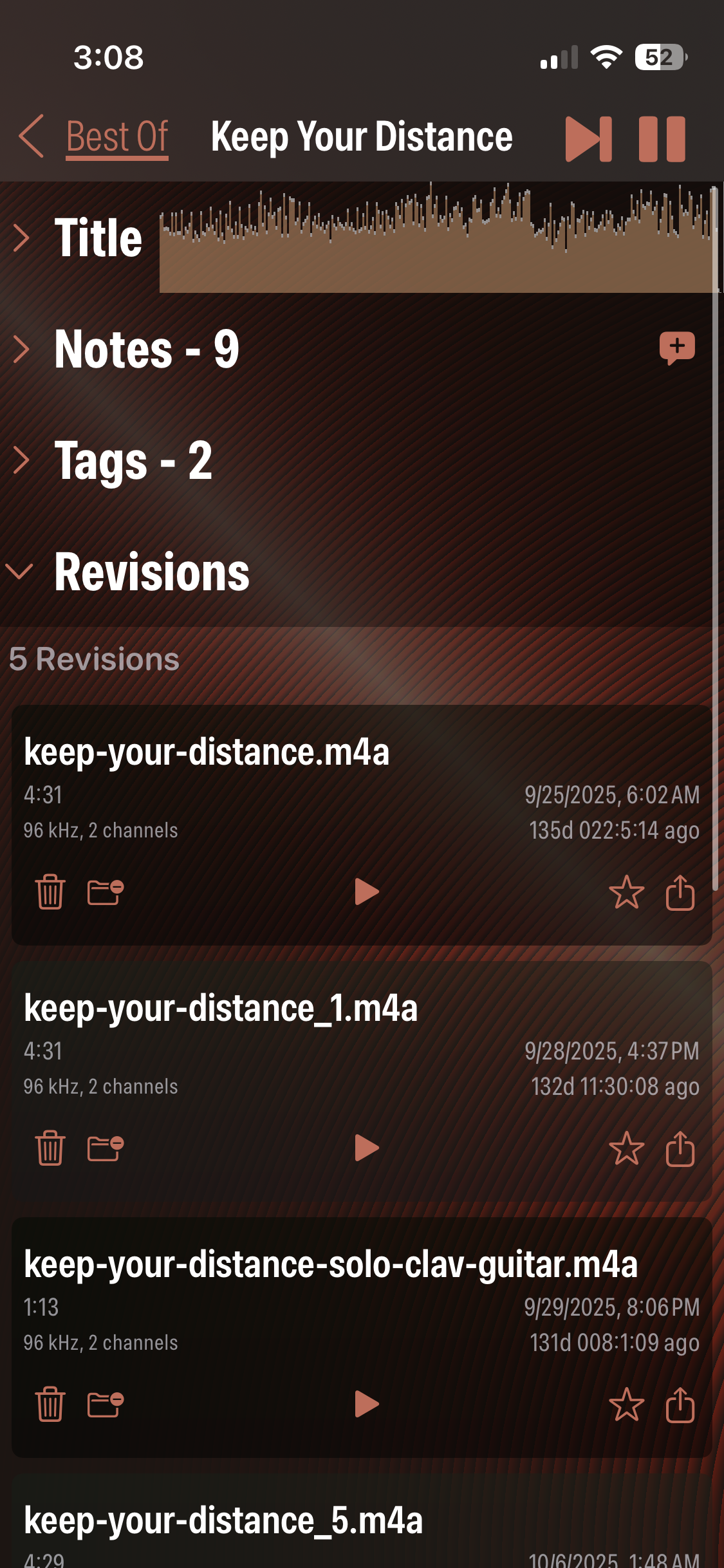
Mixen to the rescue! When you first install it, you give it permission to scan your Downloads folder, where air-dropped files land. It will scan it and find the audio files, and even figure out which files are drafts of the same tune! And it will organize them like a top-of-the-line music player, let you play them as playlists.
The next time you air-drop an audio file to your device, the Mixen app notices within a few seconds and updates your music library to include it, adding it to an existing song or creating a new one.
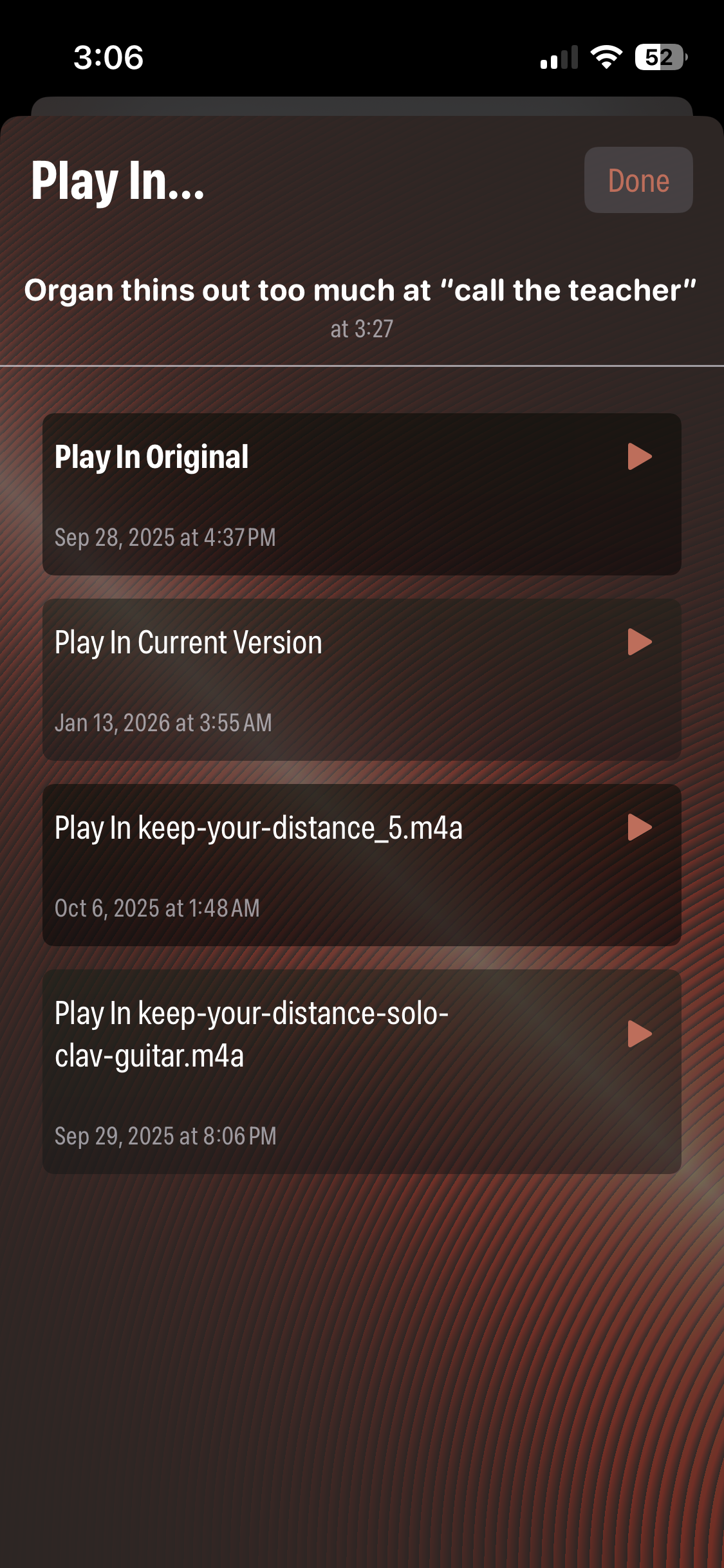
And it makes it easy to take notes - hear something that needs fixing? Tap the notes button - the music stops, type in what to fix, click Done and it resumes playing. That note is tied to the point in the song where you tapped. With the next mix, you can A/B that spot with a couple of taps. If you’re satisfied with the result, check it off and it’s marked as Done.
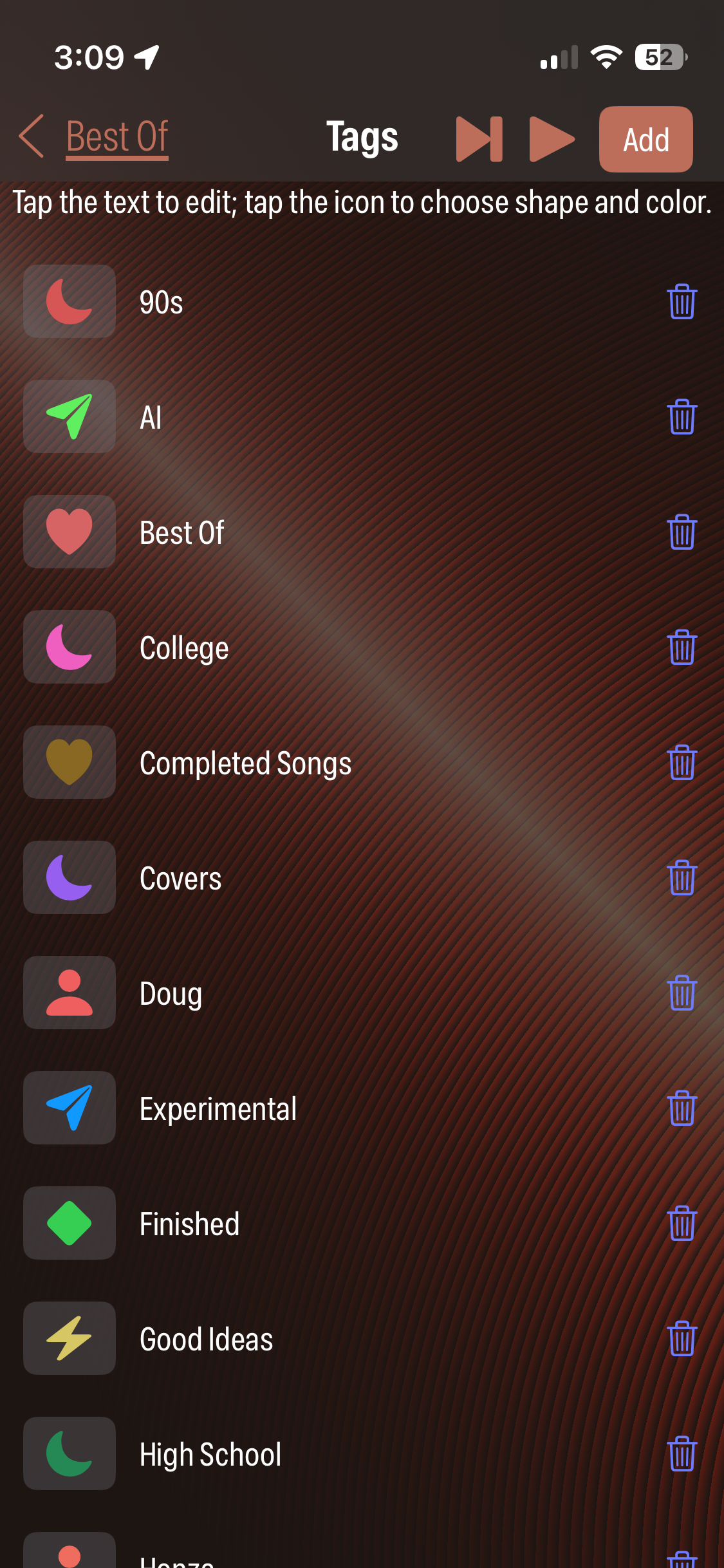
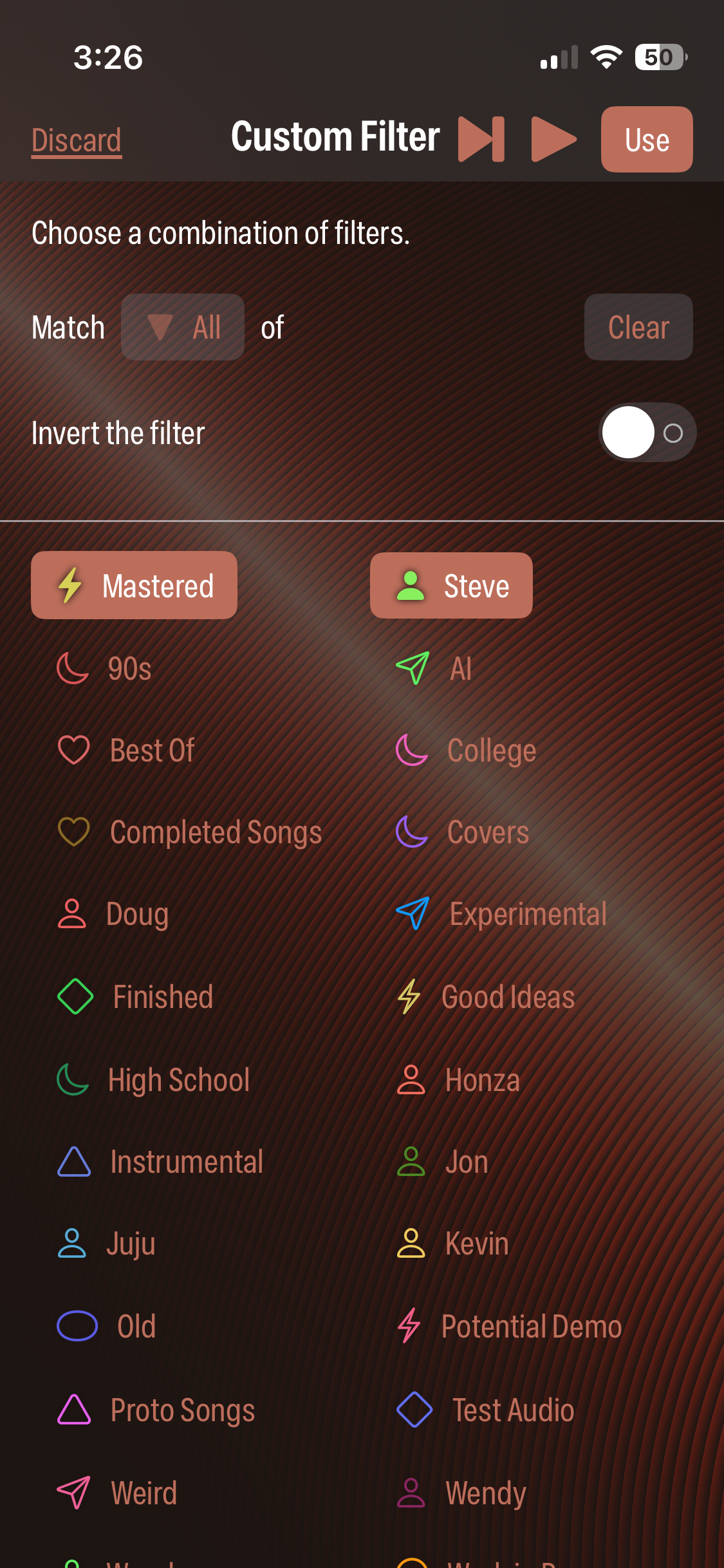
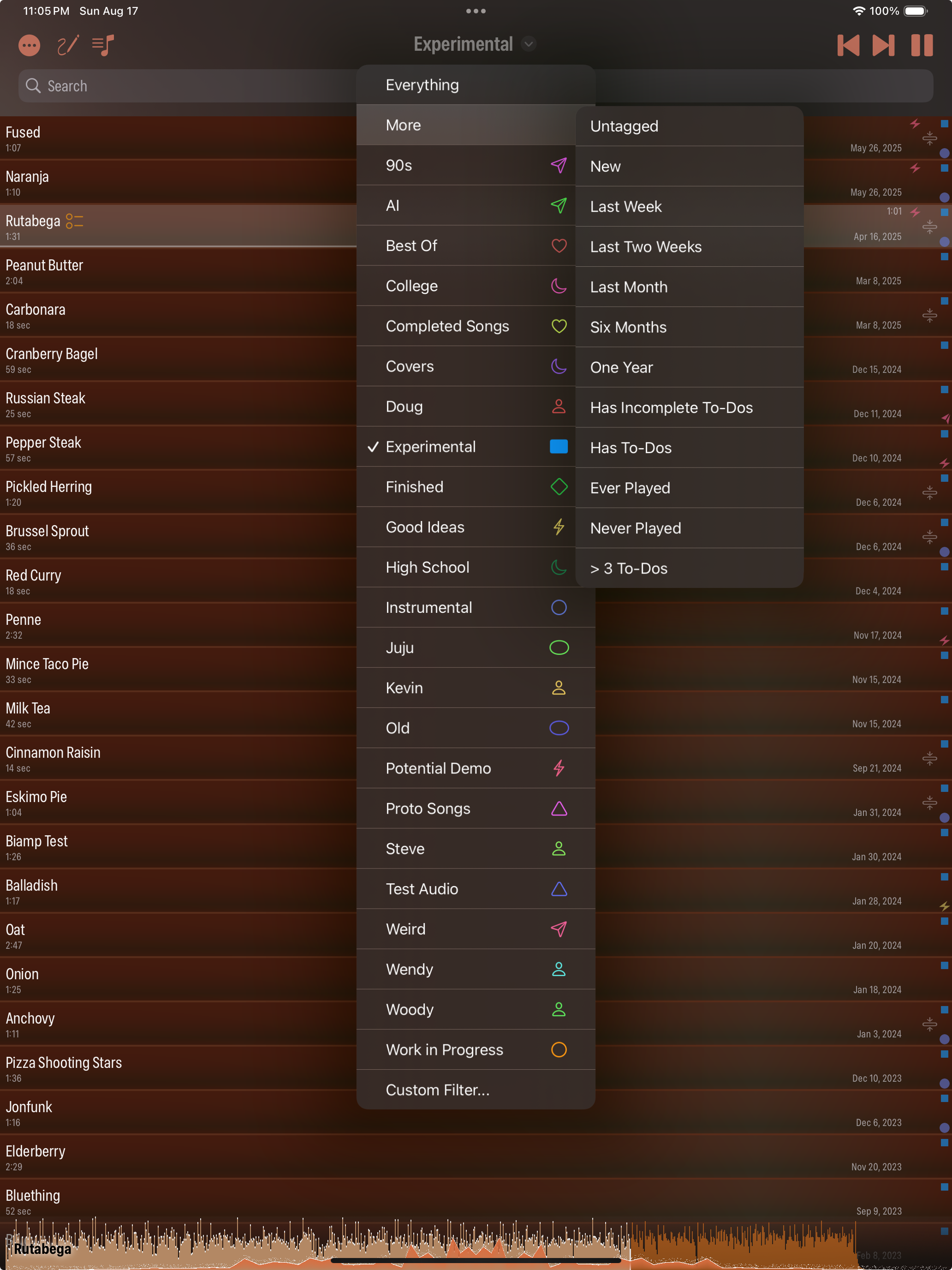
You can tag songs to organize by any categorization you like, and create playlists from tags or combinations of tags.
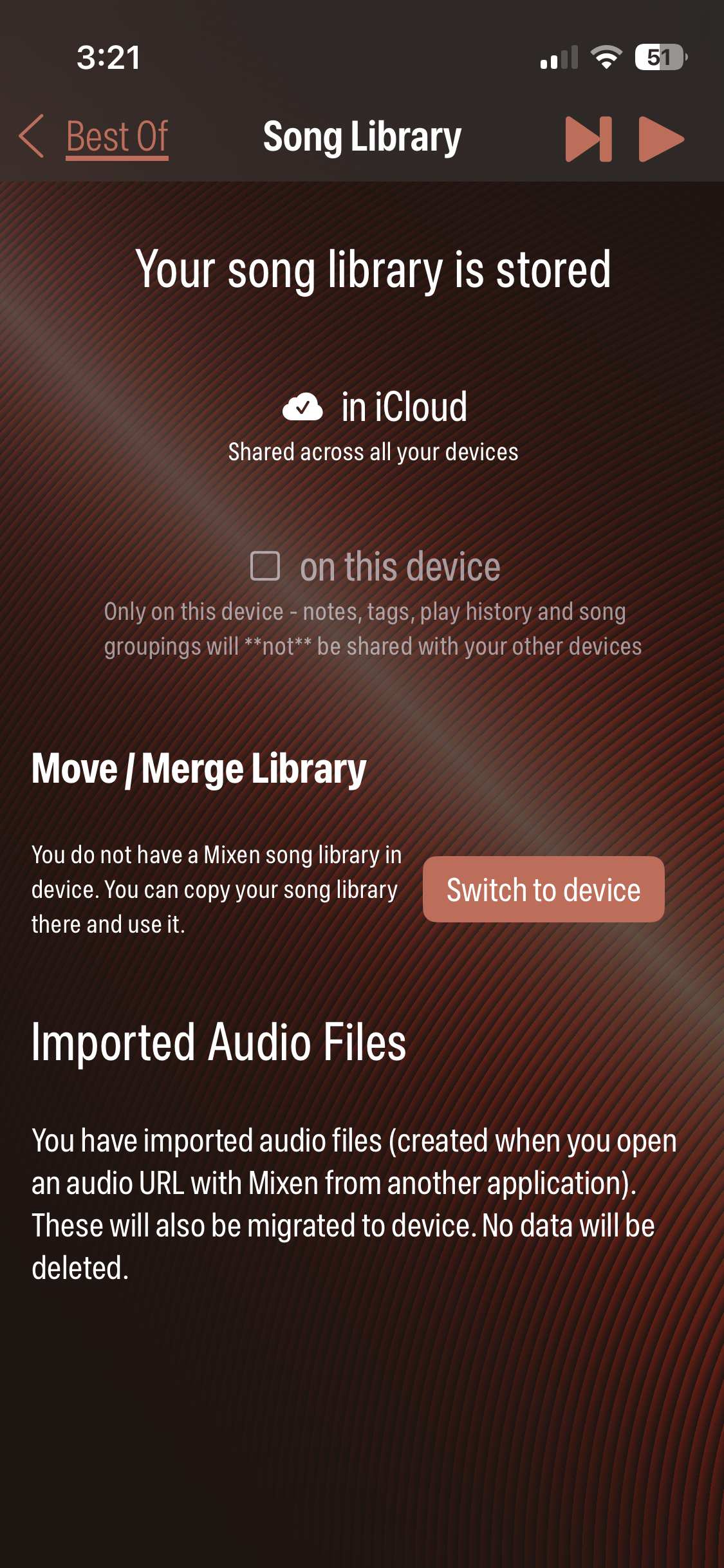
And it integrates with audio in your car, and Airplay, seamlessly. If you have more than once iOS device, your Mixen song library, and use iCloud, then your notes and other metadata is available on all your devices and updated nearly in real-time.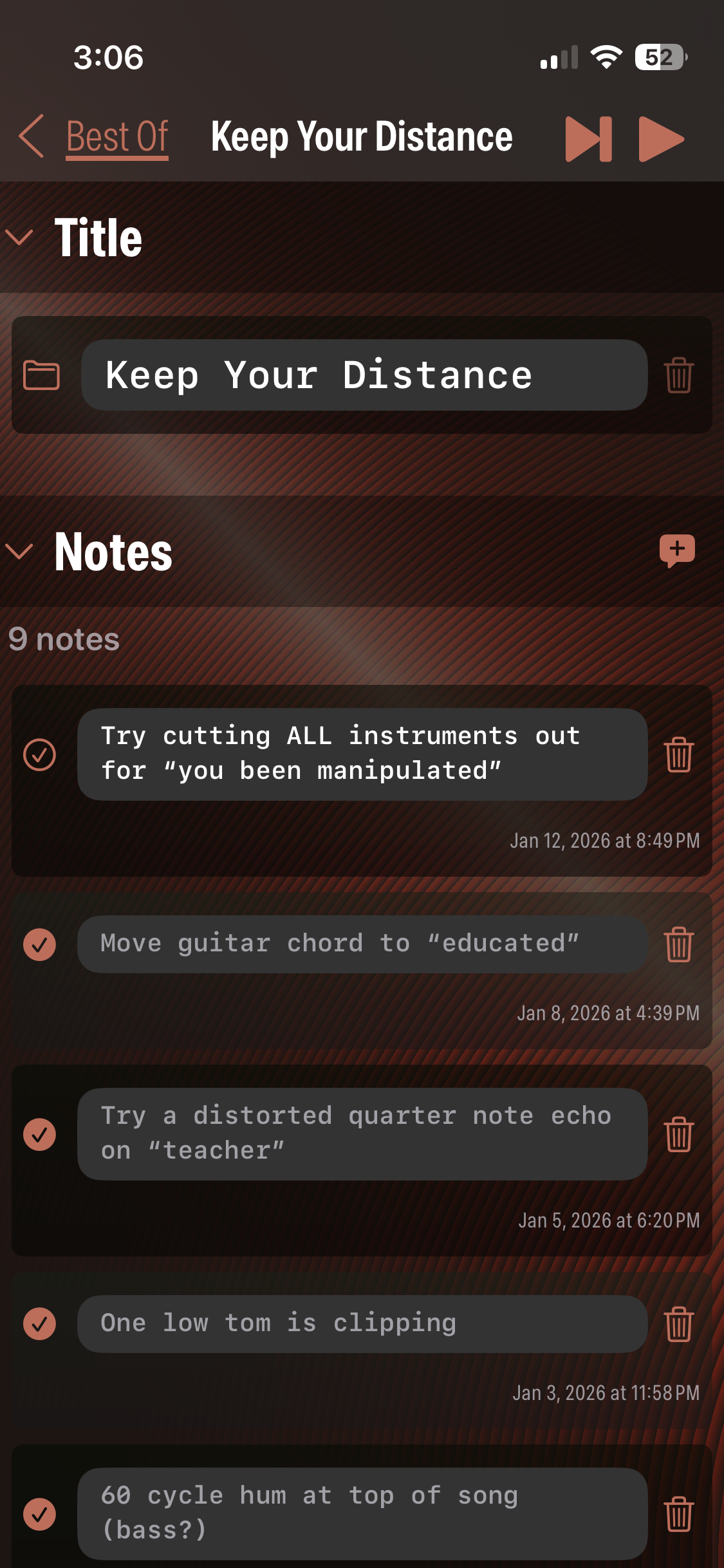
Pricing
Mixen uses a “freemium” pricing model - we hate the idea of filling it with ads. So, you get 75 plays out-of-the-box. After that, you get 5 plays a day, or you can subscribe for $5 every three months for unlimited use.
We want it to be useful even if you don’t subscribe, but we have to pay the bills to keep updating it as new iOS versions come out.
How It Works
The first time you set up Mixen, it will ask you to show it where to look for audio files. Typically that’s your Downloads folder - that’s where files you AirDrop to your device land. That is how you give Mixen permission to look for files in that folder - generally, you only need to do it once. You can set up more than one folder - if someone has shared an iCloud folder with mixes in it, add that! If you have another media player like VLC, that has it’s own media library, and you have some stuff in there, add that!
If you use iCloud, your Downloads folder is shared across all your devices. If you set up Mixen on another iOS device, just point it at the same folders and you’ll have the same songs, tags and notes on both devices, with updates between them nearly in real-time.
Scanning
The first time you set it up, if you have a bunch of audio files, scanning can take a while (a little line bouncing back and forth at the top of the screen tells you when scanning is happening). Mixen is finding all of the audio files in the folders you set up, and creating “songs” or adding them to existing songs.
After that, Mixen will do a quick check of each folder for new audio files whenever it is started, or whenever iOS tells it a file was added to or removed from one of the folders you set up.
What is the “same” song
It would be lovely if DAW makers embedded metadata in files that said “Here’s the project this was mixed down from” so we could 100% perfectly tell when we’re seeing an audio file that came from the same project as another one. But they don’t. So we do it using some clever file-name matching, starting from the pattern Logic Pro and Garage Band use for audio files AirDropped from File > Share, which is project-name-or-revision plus date and time.
Generally that works well, but if it gets confused, you can always move audio files in and out of songs using the Files page off the main menu, or the detail page.